Build a dashboard with SiftGPT
Open Analytics → Custom Dashboards → New dashboard. Choose Describe it and tell SiftGPT which numbers and charts you need.
Follow the dashboard walkthrough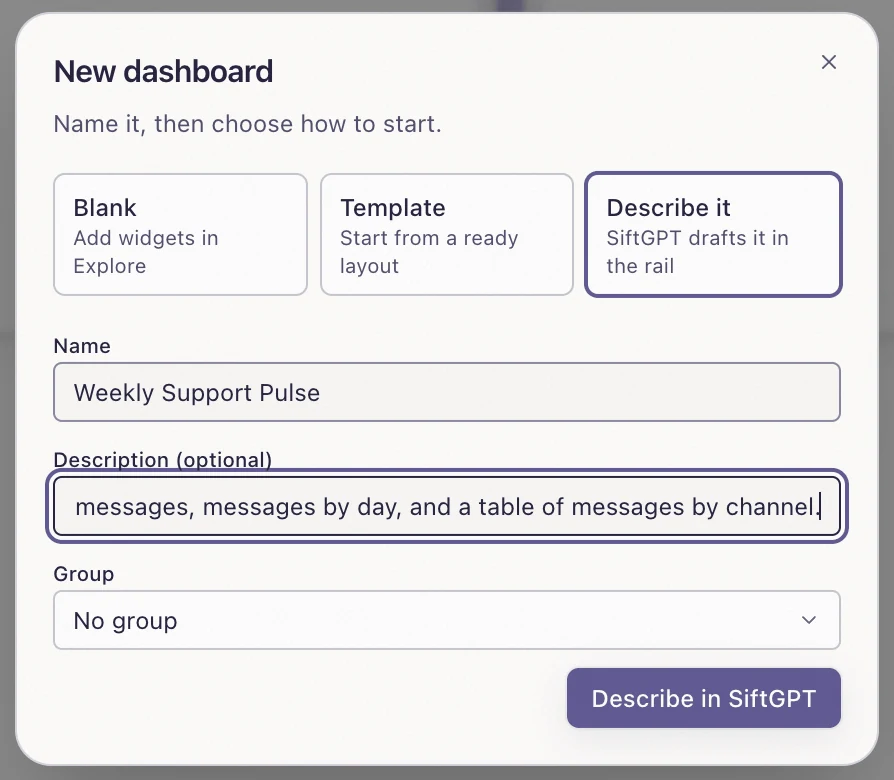
Sift documentation
Find your assigned conversations, set up your team, or build a report with SiftGPT.
Open Analytics → Custom Dashboards → New dashboard. Choose Describe it and tell SiftGPT which numbers and charts you need.
Follow the dashboard walkthrough Open Settings → Integrations and choose a platform. Then check your inbox for new conversations.
Connect a channelOpen Inbox → My Actions to find conversations assigned to you. Read the thread and check who will see your reply.
Work through a conversationOpen Settings → Workspace → People & access. Select Members → Invite members and choose a role for each person.
Set up your teamAsk an admin to set the queue permission to Reviewed-Write. Submit a test reply and check that it appears in Review.
Set up reply approvalCreate a scheduled agent with your report question. Choose when it runs and where it posts in Slack.
Schedule a reportConnect Claude, ChatGPT, or another AI app to Sift using MCP. Ask a read-only question and open a source link.
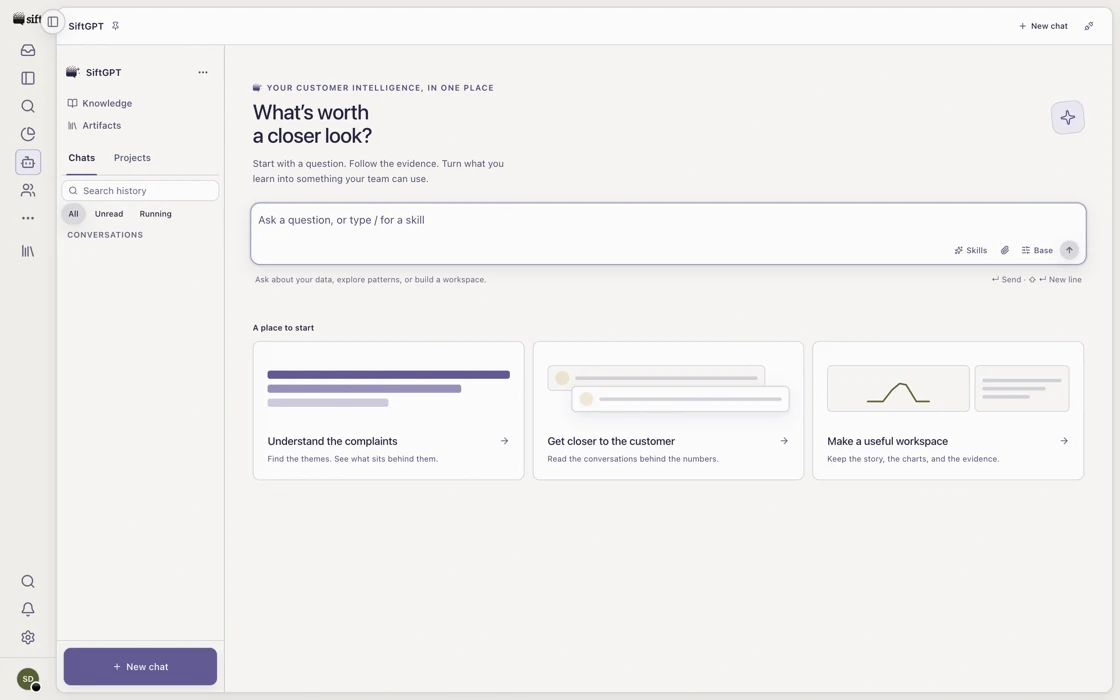
Connect your AI appOpen SiftGPT and ask a question about a channel you use.
What were the top customer issues on Instagram last week? Give me two conversation links for each issue.
Open a linked conversation to check the answer before you share it.
See more SiftGPT prompts