How to Tag Someone on Every Major Platform: Steps and Fixes
"Learn how to tag someone on X, Instagram, Facebook, LinkedIn, Discord, Telegram and WhatsApp, fix failed tags, and avoid unwanted exposure."
A customer's billing complaint is spreading through your replies, and you want to pull their account into the conversation without dragging the wrong person into a public dispute. You type their name, publish, and assume they've been notified. Then your support queue gets another message: they never saw it.
Knowing how to tag someone means checking more than the handle. For social care teams, a tag is a notification, distribution and consent event. The right action brings a customer into the right conversation. The wrong one exposes someone, misses an escalation or creates another complaint your team has to resolve.
Table of Contents
- Tags, Mentions and Photo Tags Work Differently
- Check Who Will See Your Tag First
- Step-by-Step Tagging in Posts, Photos and Comments
- Tagging in Discord, Telegram and WhatsApp Groups
- Why Your Tag Fails and What to Do Next
- Route Tags and Mentions at Volume for Your Team
Tags, Mentions and Photo Tags Work Differently
Before pulling that customer into a public complaint thread, decide what you need. If you want their attention, a reply mention may be enough. Attaching their account to an image is a different action with different visibility consequences.
Social teams often use tag to describe several mechanics. That shorthand becomes a problem when an agent expects a text mention to appear on someone's profile, or assumes that adding a name to an image works like replying to a customer.
Tagging mechanics compared across platforms
| Mechanic | Where it works | Who gets notified | Changes tagged profile? |
|---|---|---|---|
| Photo or video tag | Instagram, Facebook | Tagged account | Yes, when tagged posts are allowed to appear on the profile or timeline |
| Post mention | X, LinkedIn, Facebook, Instagram captions | Named account, if placed within platform limits | No, the post stays in the author's feed |
| Comment or reply mention | Most feed platforms | Mentioned user | No |
| Group chat mention | Discord, Telegram, WhatsApp groups | Mentioned member, subject to channel or group settings | No |
| Hashtag | Most feed platforms | Nobody | No, it labels a topic instead of a person |
A media tag connects an account to a photo or video. A mention creates an account reference inside text. Neither should be confused with your internal support tags, such as billing, outage or refund pending, which organize work rather than notify customers.
A comment mention also leaves the original post unchanged. That makes it useful when you need to bring someone into an existing thread without publishing a separate post or attaching them to media.
Practical rule: Pick the mechanic before opening the composer. Attention, identification and topic classification are different jobs.
For a billing complaint, the safest useful action is usually a contextual reply to the customer, followed by a private support handoff when account details are needed. A public tag shouldn't become a substitute for case ownership.
Check Who Will See Your Tag First
A tag isn't just a notification. It can change where content appears and who encounters it. Before tagging a customer, check the post's audience as carefully as you check the account name.
Facebook's tagging guidance explains that tagging can add a post to someone's timeline, notify them and potentially make it visible to the selected audience plus friends of the tagged person. Don't assume the audience you originally chose tells the whole visibility story.
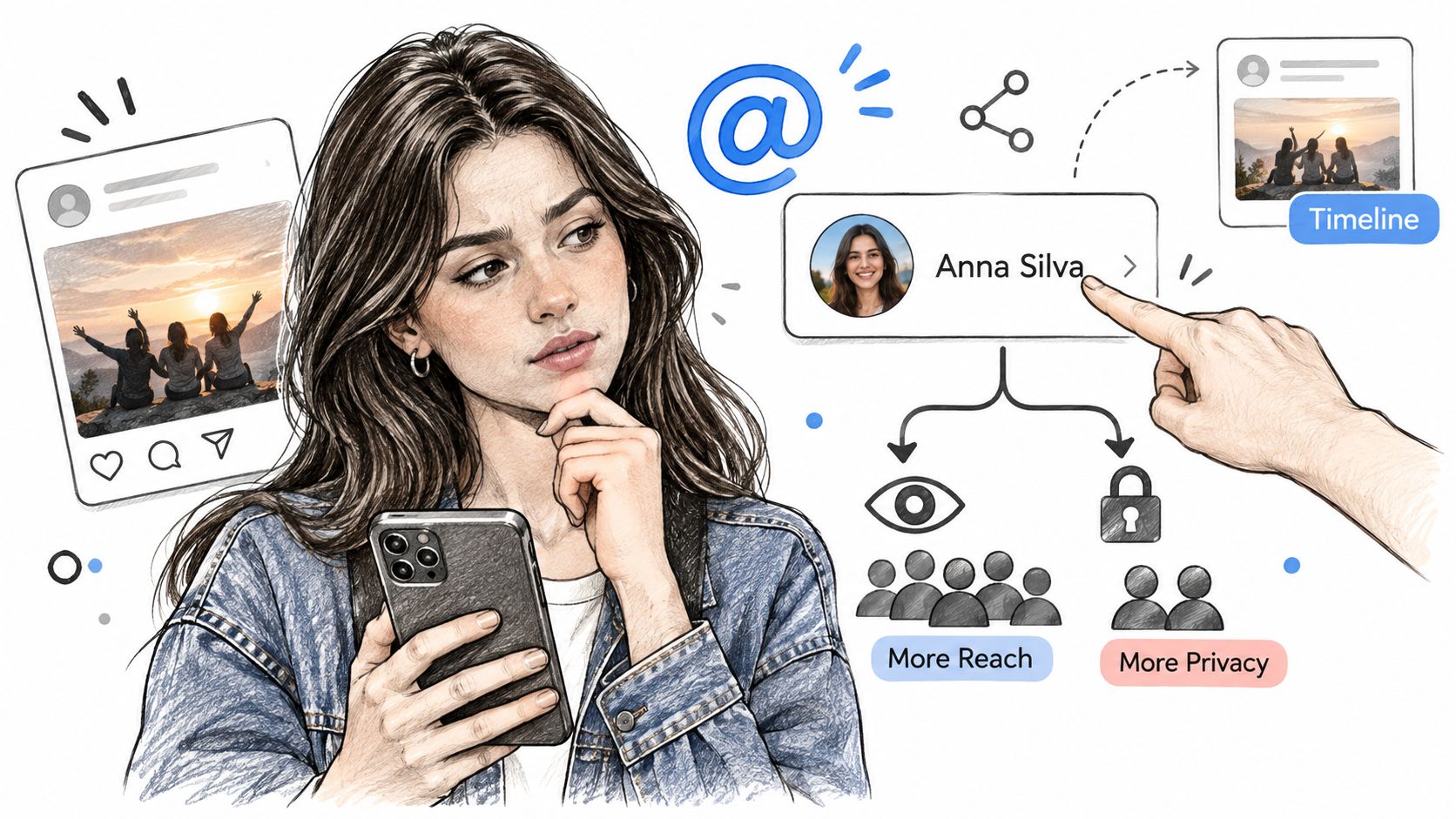
On Instagram, tagged content may appear automatically on someone's profile unless they require manual approval. Approval controls profile placement, not whether the tagging event happened: the person can still receive a notification while the post awaits review.
Unwanted identification isn't an obscure concern. In Pew Research Center's 2012 findings, 37% of social-networking profile owners said they had removed their name from a photo someone else tagged; the corresponding age-group figures included 49% of users ages 18–29 and 16% of those 65 or older.
Run a pre-tag consent check
- Decide whether a notification helps. Don't ping a customer to make an internal handoff look public.
- Check privacy and tagging permissions. Confirm that the account relationship and recipient's settings allow the action.
- Review the post's audience. Look for customer details, employee identities or sensitive context before adding another account.
- Get agreement before identifying someone. Be especially careful with customers, employees, journalists and vulnerable users.
Treat a removed tag as a preference signal, not an invitation to try again. For a customer success photo, event recap or complaint screenshot, ask a straightforward question: would this person welcome this post appearing on their profile? If you can't answer confidently, ask first or leave them untagged.
Step-by-Step Tagging in Posts, Photos and Comments
Use the native platform composer when diagnosing a missed tag. That helps separate an account-permission issue from a scheduling tool's tagging limitations, and lets you inspect the account selection before publishing.
Create and select the account reference
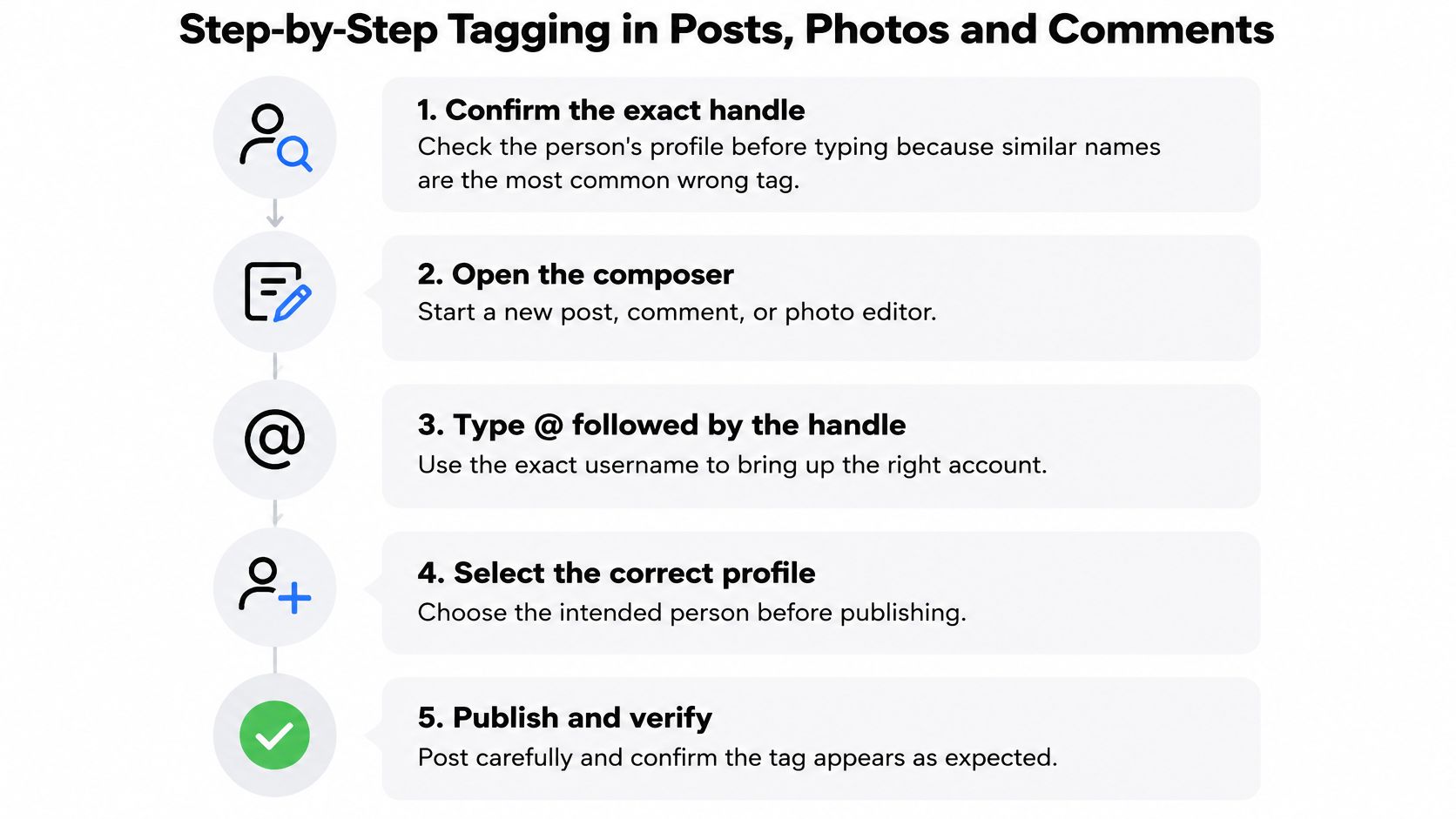
Confirm the exact handle. Open the person's profile and check the username, photo and relevant account details before typing. Similar display names make it easy to pull an unrelated customer into a support thread.
Open the right composer. Start a new post, comment, reply or photo editor according to the action you need. Don't open the image-tagging tool if your goal is to address someone in a reply.
Type @ followed by the handle or name. Choose the intended account from the suggestion list rather than accepting a partial match. A typed display name can look convincing without becoming an account reference.
Keep X mentions early. X's post guidance says a mention must appear within the first 280 characters to notify the account, and the same placement rule applies when replies are restricted to mentioned accounts. Don't bury an escalation handle after a long incident explanation and assume the visible mention delivered a notification.
Use Facebook's text mention or Tag people control. In a post, type @ and select the profile or Page, or use Tag people when that's the intended association. Check which account you selected, because a business Page and a similarly named personal profile aren't interchangeable.
Apply the platform-specific action and verify it
Tag people in Instagram or Facebook photos. Open Tag people, tap the person's position where the editor supports it, and select their account. Don't attach a customer to a promotional image merely because they previously contacted support.
Select the LinkedIn person or company. Type @ followed by the name, then choose the correct entry so it becomes a live account reference. Use the profile photo and professional details to distinguish people with matching names.
Mention someone in a reply or comment. On Facebook, Instagram and X, enter @ and the exact handle, then select the account where suggestions are offered. Check any accounts already included in the reply so you don't notify unrelated participants.
Preview before publishing. Confirm that the selected account appears as a recognized mention or clickable name where the interface supports it. Recheck the surrounding text too, especially if an agent copied a reply containing private case details.
Verify the result, not just the send. Inspect the published post and, when appropriate, ask the recipient to confirm receipt or check notifications on an authorized test account. You can't inspect another person's notifications from your own account, and a published mention alone doesn't prove they received an alert.
Tagging in Discord, Telegram and WhatsApp Groups
A group mention can alert someone without giving them access to a restricted conversation. Before you ping, check that the person belongs to the group and can see the specific room.
| Platform | Mention syntax | Who is notified | Admin control |
|---|---|---|---|
| Discord | @username or @role | Eligible members who can view the channel, subject to notification and mention settings | Channel permissions and role mention settings |
| Telegram | @username or select a member after typing @ | The mentioned member, subject to notification settings | Admins decide who can post |
| @ then the selected contact | The mentioned member, subject to device notification controls | Admins can limit who sends messages |
Check the room before the ping
On Discord, type @ and select the intended member or permitted role. Server-wide role permissions and channel-level overrides are separate, so check the actual channel rather than assuming a server role guarantees access.
For social care escalations, keep the customer-facing room separate from the internal incident channel. Put the public question in the appropriate support channel, then route case context internally without exposing billing details to the community.
On Telegram, type @ and choose the intended member. A group's mute status does not establish whether a mention will alert someone. Check mention and device notification settings when setting up an escalation workflow.
On WhatsApp, type @ and select the contact. The selected name should appear as a mention. Since a muted group may still produce mention alerts, reserve mentions for updates that need that person's attention.
A role mention is a broadcast, not a discreet handoff.
A Discord @role can reach eligible holders who can see the channel. Reserve broad role mentions for urgent coordination, and limit who can use them to avoid unnecessary alerts.
Before pinging a room, consider whether a direct message to the responsible person would work better. Record ownership and resolution in your support workflow either way.
Why Your Tag Fails and What to Do Next
An agent says they tagged the customer, but the customer received nothing. Start with the published content and account permissions, not repeated retries. A valid-looking name, a delivered notification and an approved profile placement are separate outcomes.
Instagram's tagging help explains that people can allow tags from everyone, people they follow or nobody; blocked accounts can't tag or mention them, and you can't add people tags to someone else's post. These are recipient controls, not errors for your team to bypass.
Tag failures, likely causes and fixes
| Symptom | Likely cause | Fix |
|---|---|---|
| Tagged on X, no notification | Mention placed beyond the notification-eligible portion of the post | Move the @handle to the beginning and repost or reply |
| Name not suggested on Instagram | Account relationship, privacy or tagging restrictions | Check the exact username and follow relationship; ask about settings only when appropriate |
| Cannot tag in someone else's post on Instagram | Platform doesn't allow people tags in others' posts | Mention them in a comment with the exact handle, if mentions are permitted |
| Name shows as plain text | Account reference wasn't selected or recognized | Delete the text and select the account from suggestions |
| Tag does not appear on their profile | Review or approval settings may hold it | Let the person decide whether to approve it |
| No tag option at all | Blocking, disabled tagging or unsupported content context | Stop retrying and use a neutral reference without a tag |
Separate publisher fixes from recipient decisions
Quick publisher-side fixes include correcting the handle, selecting the intended suggestion and moving an X mention earlier. Before deleting a complaint reply to repost it, consider whether a concise follow-up preserves the conversation more clearly.
Recipient-side actions include changing permissions or approving profile placement. Following an account doesn't automatically satisfy a restriction that allows tags only from people the recipient follows. Don't promise an agent that sending a follow request will solve the problem.
Escalation boundary: A blocked or disabled tag is a boundary to respect, not a technical obstacle to work around.
If the mechanic, account and permissions all look correct, check the app or browser and compare the native composer with your publishing tool. Record the content type, exact account, publishing method and visible result before escalating internally.
Don't mark a case resolved because a tag was published. Resolution requires the support outcome, such as a confirmed refund handoff or an acknowledged incident update, rather than evidence that an agent attempted contact.
Route Tags and Mentions at Volume for Your Team
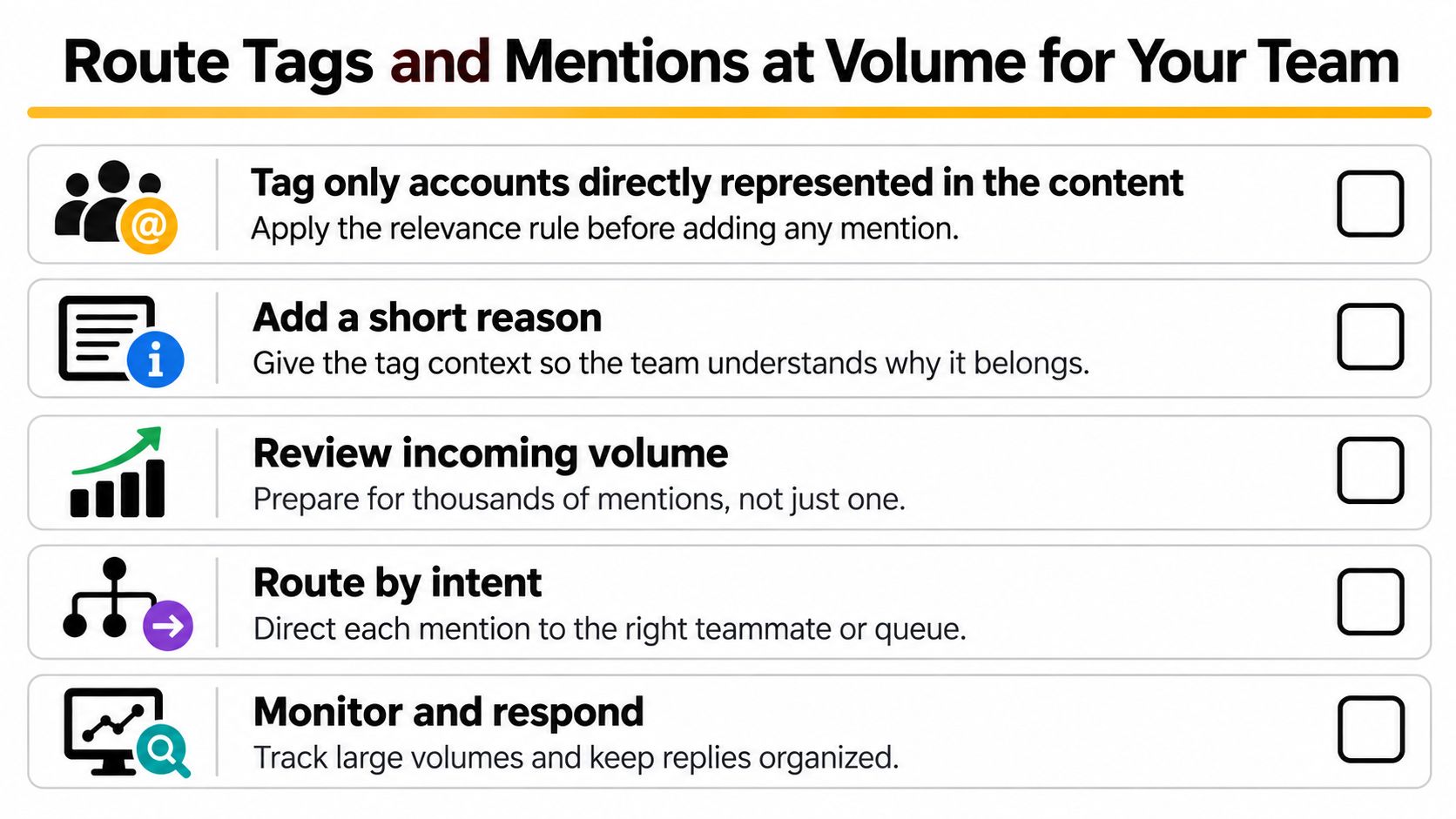
Tag only accounts directly represented in the content, and give each mention a short reason. A customer should understand why you brought them into a thread. An internal owner should receive enough context to act without reconstructing the complaint from scattered replies.
More tagging doesn't automatically produce more useful engagement. An analysis of election posts found that tagging users was associated with lower engagement on Facebook and Twitter. That finding concerns election content, not a universal support benchmark, but it's a good reason to test relevance rather than assume every additional mention helps.
Route by intent, not by the loudest notification
For incoming volume, distinguish public account mentions from internal classification tags. A billing complaint needs a finance owner; an outage report needs engineering; a journalist's question may need comms. Publicly tagging those teams isn't an adequate internal escalation process.
In Sift AI, our Triage sorts conversations by intent and priority into skip, draft, escalate or alert actions, while our tagging applies your own taxonomy. Our agents bring connected messages, mentions and reviews together, route work and prepare contextual replies for review. We flag low-confidence cases for your team, and sensitive conversations can move to a person with the context attached; your business chooses where agents may send and where humans approve.
Response targets need matching routing rules. A Metrigy consumer study found that slightly more than half of consumers considered a social-service response within five minutes acceptable, yet only 15.6% of consumers using social media for service received a response within that window. Give outage and public billing surges urgency tags that move them directly to an accountable queue.
For the broader work around relationship-building, participation and community responsibilities, Carlos Alba Media's community management guide is a useful companion to a support-focused tagging policy.
Put ownership behind the policy
Adopt these controls this week:
- Publish a tagging policy. Define when public mentions help, when consent is required and when private contact is safer.
- Name an approval owner. Give sensitive customer identification and high-risk public replies a clear reviewer.
- Define escalation routes. Assign finance, engineering, comms and trust & safety queues, including a fallback owner.
- Test outcomes. Compare similar posts with and without tags across posting cycles, tracking replies, hides, blocks and complaints, not just reach.
- Review complaints weekly. Examine wrong-account tags, unwanted identification and missed handoffs alongside response time and SLA performance.
Keep auto-closure rate separate from successful customer contact. AI can filter noise and draft the next response, but people should own disputed billing, privacy complaints, crisis decisions and the judgement about whether a public tag belongs at all.
Sift AI brings social conversations into a unified inbox, applies your team's taxonomy and routes mentions to the people responsible for resolving them. Visit Sift AI to explore a workflow where AI handles triage and drafts, while your team controls sensitive tags, escalations and customer replies.